
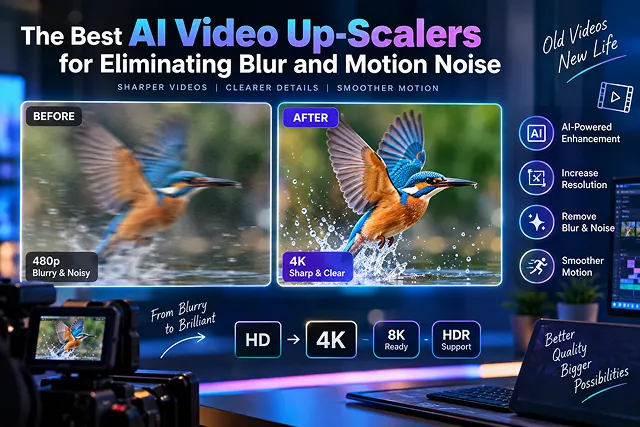
Upscaling videos has progressed from the very basic bicubic interpolation and unsharp masking methods. Basic video upscaling systems stretch pixels and mix their colors resulting in blurred image quality and existing compression artifacts which is not the case for recent AI video upscalers employing deep artificial neural networks for recovering missing high-frequency details.
By utilizing temporal recurrent neural networks, optical flow motion compensation, and generative adversarial architectures, these tools separate real subject movement from sensor noise and compression macroblocking, cleanly restoring footage from 480p and 1080p up to pristine 4K or 8K resolutions.
Above-the-Fold Matrix: Top AI Video Up-Scalers Compared
AI Enhancement & Resolution Scaling · Neural Models, Flicker Suppression & Hardware Specs
| Up-Scaler / Engine | Primary Strength | Noise & Flicker Suppression | Hardware Requirement | Best Target Use Case |
|---|---|---|---|---|
| Topaz Video AI | Industry-standard neural model selection (Proteus, Iris, Gaia) | Exceptional (Dedicated temporal de-noise & anti-flicker models) | High-end local GPU (RTX 3080/4090 or Apple Silicon M-Series) | Post-production studios, filmmakers, & local workstation power users |
| Real-ESRGAN Video (Open-Source) |
Lightweight, fast anime and CGI enhancement | Moderate (Can over-smooth natural film grain) | Mid-range local GPU or Google Colab / Linux server | 2D/3D animation, anime upscaling, & automated developer CLI scripts |
| DaVinci Resolve (Super Scale / Neural Engine) |
Native timeline integration with color grading | Good (Best when combined with Studio temporal noise reduction) | Mid-to-High local GPU (DaVinci Resolve Studio license) | NLE video editors wanting seamless color-pipeline workflows |
| CapCut / Web-Based Cloud Up-Scalers |
One-click browser/mobile cloud processing | Moderate (Limited model parameter tuning) | Zero local GPU (Processed in the cloud) | Quick turnaround social clips (TikTok, Shorts, Reels) |
| TensorRT / Custom FFmpeg Neural Filters |
Maximum frame-rate batch automation | Custom (Depends on chosen ONNX/TensorRT checkpoint) | NVIDIA Tensor-core GPU & Linux/terminal proficiency | High-volume SaaS pipelines & automated rendering clusters |
1. The Core Neural Mechanisms Behind Blur and Noise Elimination
Upscaling dynamic video is far more challenging than upscaling a single static photograph. A frame-by-frame static AI upscaler creates severe temporal flickering—where reconstructed textures shift slightly on every frame, producing an unnatural boiling effect. Modern video upscalers resolve this using three core machine learning techniques:
[Distorted Low-Res Frames: t-1, t, t+1]
                │
                ▼
[1. Bidirectional Optical Flow Estimation]
  • Tracks physical pixel trajectories between consecutive frames
  • Distinguishes true subject velocity from sensor grain & noise
                │
                ▼
[2. Temporal Alignment & Multi-Frame Fusion]
  • Gathers structural details obscured by blur in frame (t) from sharp moments in (t-1)
  • Strips high-frequency sensor noise while preserving static skin/fabric texture
                │
                ▼
[3. Latent Super-Resolution Reconstruction]
  • Generates high-frequency sub-pixels (480p/1080p ➔ 4K)
  • Enforces temporal consistency constraints (Zero edge shimmer)
                │
                ▼
[Final Stabilized 4K Output: Crisp Edges, Coherent Grain, Zero Motion Smear]
1. Bidirectional Optical Flow Estimation
- The engine analyzes frames backwards and forwards in time (t−1,t,t+1). If an actor swings their arm quickly, the model calculates the motion vector of that movement.
- By isolating the direction and speed of the subject, the network avoids treating real physical movement as camera blur, preserving crisp boundaries around moving edges.
2. Multi-Frame Information Borrowing
- In a number of instances, blurs obscuring certain details in sequential frames are seen in photographs after being discernible in previous frames in perfect clarity: blurry images are shown after sharper ones.
- Temporal super-resolution models (exemplified by Topaz's Proteus and BasicVSR++) work by obtaining information from the immediately preceding frames that show high-quality recordings, projecting successfully interpreted pixels from sharp images into the blurry image.
3. Noise Stripping vs. Detail Reconstruction (The Nyx Model)
- Traditional denoisers blur image details to wash away grain, leaving faces looking waxy or plastic. Specialized video models (for instance, Topaz Nyx) use pairs of recordings made on deliberately distorted sensor readings and clean studio video as sample footage.
- The whole process involves recognizing the mathematical signatures of CMOS sensor distortions and eliminating those distortions from the file while also recognizing important details such as eye eyelashes, fabrics, and pores.
2. Production Workflow: Remastering Archival Footage
1. Sourcing, Audio Processing, and Deinterlacing
- Convert old interlaced formats (like 480i or 1080i broadcast series) to the new progressive format with speed using hardware equipment to perform deinterlacing. Ensure pixel aspect ratio meets the requirement of changing pixels into square pixels to avoid incorrect aspect ratio during scaling.
2. Separating the Noise Floor
- Apply an initial temporal denoising pass prior to resolution scaling. If high-ISO camera sensor noise or analog tape grain is fed directly into a sharpening algorithm, the model will mistakenly upscale the noise artifacts into harsh, jagged patterns.
3. Target Model Selection & Parameter Calibration
Run 3-second test renders using multiple neural models:
- Select Proteus / Iris for general human subjects and natural scenes with slight focus misses.
- Select Nyx for heavy low-light sensor noise.
- Select Theia / Gaia for structural architecture, clean lines, and geometric graphics.
4. Use Multiple Pass Super-Resolution Rendering
- Upscale to target resolution (1920x1080 or 3840x2160) using the upscale pass. 100% dedicate GPU vram to avoid host-to-GPU memory thrashing.
5. Synthetic Film Grain Ingestion & Final Mastering
- With the complete noise removal and the upscale process carried out, the resulting footage may reveal an excessively artificial or clean appearance. Introduce a uniform, slight layer of synthetic film grain (or enable the AV1 compression technology to ensure that the original film grain is present in the footage) to give the image a sense of depth.
Topaz Video AI Model Parameter Matrix
When configuring neural upscaling passes, matching the underlying model architecture to the exact physical degradation of your source footage prevents synthetic over-sharpening and edge halos:
| Model Identifier | Primary Neural Target | Motion Vector Handling | De-Noising Capability | Processing Speed | Optimal Use Case |
|---|---|---|---|---|---|
| Proteus (v4/v5) | Fine-grained manual control (Revert compression, sharpen, de-halo). | Optical flow tracking on fast pans. | Tunable (0 — 100 scale). | Moderate (≈ 12 — 18 FPS). | General live-action footage, DSLR captures, slight focus misses. |
| Iris (v1/v2/v3) | Human face reconstruction and eye/skin texture recovery. | Constrained facial mesh stabilization. | High (Cleans aggressive digital artifacts). | Moderate-Slow (≈ 8 — 14 FPS). | Talking-head interviews, webinars, low-resolution archival documentaries. |
| Nyx (v1/v2/v3) | Heavy CMOS low-light sensor noise and high-ISO chroma hiss. | Temporal neighborhood multi-frame averaging. | Class-Leading (Maintains edges while stripping sensor floor). | Fast (≈ 20 — 30 FPS). | Night shots, concert footage, unlit mobile video captures. |
| Gaia (CG/HQ) | High-contrast structural geometry and synthetic lines. | Rigid transform interpolation. | Low (Assumes clean vector/3D source). | Very Fast (≈ 28 — 40 FPS). | 3D animations, video game captures, UI screen recordings. |
| Dione (DV/TV) | Interlaced broadcast fields (480i, 576i, 1080i). | Temporal field de-interlacing without line jitter. | Moderate (Removes analog tape noise). | Fast (≈ 24 — 35 FPS). | Remastering VHS tapes, BetaCam spools, and early 2000s TV broadcasts. |
| Apollo / Chronos | Temporal frame interpolation (24 FPS → 60/120 FPS). | Non-linear bidirectional optical flow warping. | None (Interpolation pass only). | Compute-Heavy (≈ 6 — 12 FPS). | Slow-motion conversion and converting stuttery frame rates. |
Request A Custom AI Video
Tell us what you're trying to create and we'll point you to the right tool — or help you set it up.
3. How AI Video Up-Scalers Eliminate Motion Noise & Artifacts
Standard image upscaling handles each frame in a vacuum. Applying single-frame image upscalers to video causes catastrophic temporal shimmering (boiling noise), where textures shift and warp from one frame to the next.
Advanced video upscalers rely on multi-frame recurrent architectures:
[ Frame N-1 ] ──┐
[ Frame N   ] ──┼──► [ Optical Flow & Temporal Alignment ] ──► [ Neural Reconstruction ] ──► Clean 4K Master
[ Frame N+1 ] ──┘
- Temporal Optical Flow Analysis: The model tracks pixel movement vectors forward and backward across adjacent frames, verifying whether a detail is actual motion or random generative grain.
- De-Flickering & Latent Noise Stripping: High-frequency diffusion flicker is filtered out by comparing pixel consistency across time.
- Hallucination of Fine Structural Detail: The neural network synthesizes realistic structural high-frequency information—sharpening soft focus, defining typography, and restoring iris reflections without generating plastic or waxy skin textures.
4. The 5-Step Pipeline to Upscale Video and Clean Motion Noise
Follow this production workflow to eliminate motion artifacts and upscale video to clean 4K:
1. Prepare and Isolate Source Footage
- Always upscale from the highest-bitrate master file available (ProRes, uncompressed MOV, or high-bitrate MP4).
2. Select the Appropriate Neural Model
- Match your model to your footage type:
3. Calibrate Noise Suppression & Revert Compression
- It is advisable not to set the noise reduction to an extreme value of 100% because a high level of reduction can make the video appear unnatural and would produce a waxy look on the video.
4. Run a 5-Second Test Render
- Create a short sequence of around 3 to 5 seconds that features a lot of fast movements. Check the result in 100% output and confirm that the fast movements do not have any ghosting or blurring effect.
5. Batch Render & Encode to 4K AV1 or HEVC
- Perform the entire upscale pass to native 3840x2160 (4K). Re-encode the result with contemporary codecs (AV1/H.265/HEVC) and a CRF 20 to 24 to keep the highest image quality possible while offering a reasonably lightweight file size for streaming.
5. 4 Golden Rules for AI Video Upscaling
- Repair Sound Prior To Sharpening: Always avoid applying heavy sharpening effects to footage with noise or flicker. Sharpening a dirty frame means that noise will remain in that frame and get amplified throughout the video.
- Adjust Frame Interpolation Wisely: If you want to convert footage from 24fps or 30fps to 60fps with the aid of AI frame interpolation (e.g., Chronos, Apollo), pay attention to the edges.
- Store Natural Film Grain: An excessively clean, noise-free video renders an unnatural look. After you run the AI de-noise algorithm, you can add around 1%−2% of natural 35 mm film grain effect in your video editor.
- Analyze Hardware Thermal Tolerance: Local AI video upscaling requires GPUs to use 95%−100% of their operations for hours if not cooled or powered properly, resulting in unstable software and errors.
AI Video Up-Scalers & Denoising
Compare temporal deblurring models, motion-noise suppression, face restoration, and 4K enhancement tools.
For local desktop rendering, Topaz Video AI is the premier industry standard, offering specialized models like Proteus (fine-tuning parameters) and Iris (face and eye recovery). Open-source solutions such as Real-ESRGAN Video and Compact/UltraSharp models via ComfyUI offer zero-cost local upscaling. For cloud workflows, Krea AI, Runway 4K Enhancer, and Magnific Video provide rapid, browser-based perceptual enhancement.
Unlike static image enhancers that treat each frame in isolation, video upscalers use Optical Flow and Bidirectional Recurrent Neural Networks (RNNs). The AI tracks pixels across preceding and following frames. If a soft patch aligns with an object's physical velocity vector, the model preserves it as natural cinematic motion blur; if a pixel cluster flickers randomly between frames, the model classifies it as latent noise and scrubs it clean.
Edge shimmering occurs when diffusion models fail to maintain uniform pixel values along high-contrast lines (like fence posts, hair strands, or brickwork) from one frame to the next. Video upscalers eliminate this using Temporal Anti-Aliasing (TAA) and Multi-Frame Super-Resolution, blending historical sub-pixel data across consecutive frames to stabilize shifting edges into a locked, jitter-free outline.
Use Proteus Fine-Tune for standard blurry or compressed footage, as it provides manual sliders for Revert Compression, Recover Details, and Deblur. For human-centric scenes with soft facial details, switch to Iris, which specializes in face reconstruction. For heavily degraded legacy interlaced video or high-speed sports with motion blur, Theia or Dione yield the sharpest results.
Traditional smoothing filters erase skin micro-textures, turning faces waxy. Modern upscalers use Generative Facial Prior Networks (like CodeFormer, GFPGAN, or Topaz Iris). These models recognize landmarks (pupils, eyelashes, lips) and synthesize authentic pores and specular reflections rather than just blurring artifacts. To maintain realism, keep face recovery strength around 60–75% rather than maxing it out.
Spatial Super-Resolution (e.g., Topaz or Real-ESRGAN) strictly enhances the existing pixel information, preserving the original shot's true details without adding new elements. Generative Hallucination Upscalers (e.g., Magnific or Krea) pass the video through a diffusion model with prompt guidance, synthesizing entirely new details (like intricate fabric weaves or individual tree leaves) that were never present in the source footage.
Yes. Motion blur often looks harsher when video frame rates are low (16fps–24fps). Combining resolution upscaling with Frame Interpolation models (such as Apollo, Chronos, or RIFE) interpolates synthetic intermediary frames. This elevates choppy footage to a fluid 60fps, spreading sudden motion shifts across more temporal points and reducing perceived motion blur significantly.
Video deblurring and super-resolution are computationally intensive. The ideal setup is an NVIDIA RTX GPU with at least 12GB to 16GB of VRAM (RTX 4070 Ti, 4080, or 4090), 32GB of system RAM, and PCIe Gen 4 NVMe storage. On Apple Silicon, an M2/M3 Max or Ultra chip with 32GB+ Unified Memory delivers strong performance leveraging Apple's Neural Engine.
Always denoise, deblur, and upscale first. Heavy color grading or contrast adjustments stretch compressed pixel ranges, amplifying hidden compression noise and banding. Providing the AI upscaler with the cleanest, raw master clip allows its optical flow calculations to work accurately without confusing color grading artifacts for scene data.
Follow this proven 3-Step Restoration Pipeline: First, trim and isolate only the required scene takes in your editor to save compute time. Second, import the sequence into Topaz Video AI using the Proteus model with moderate de-noise (15–25) and de-blur (30–45), paired with 2x or 4x spatial scaling to reach clean 4K. Third, re-import into DaVinci Resolve or Premiere, add a 1% subtle 35mm film grain overlay to unify natural textures, and export as a master ProRes or high-bitrate H.265 file.
Ready to try Skora AI?
Transform your ideas into cinematic video in seconds.