
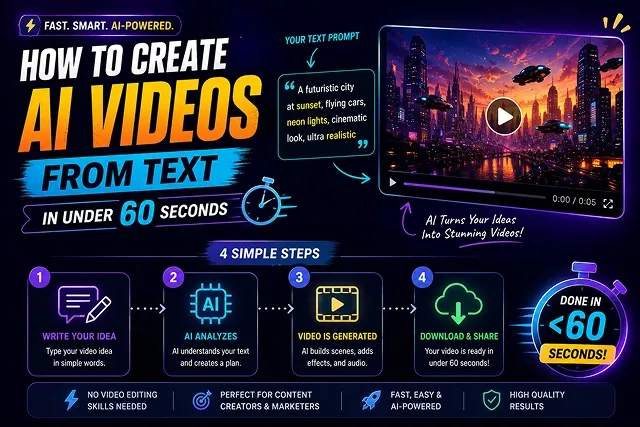
The video-making process has been challenging for many people in the past. It takes a lot of expensive tools like cameras and lighting equipment to make a video and sometimes can take days!
But modern technology has changed this completely.
With online software, you can create fantastic video clips after just typing in a short phrase. And you do not need to have any special software or hardware!
Whether you want to create viral faceless social media content or interesting ads for your online shop, the guide below will help you create AI videos.
Above-the-Fold Breakdown: Traditional Video Editing vs. 60-Second AI Generation
Production Efficiency Matrix · Traditional Filming vs. Instant Cloud Rendering
| Production Metric | Traditional Video Production | 60-Second AI Video Generation |
|---|---|---|
| Production Time | 4 to 24 Hours (Filming + Editing) | 30 to 60 Seconds (Instant Cloud Render) |
| Equipment & Software | Cameras, Mics, Premiere Pro/DaVinci | Any Standard Web Browser (No Downloads) |
| Average Cost per Video | $100 – $1,000+ (Actors, Gear, Editing) | $0.00 (Free Browser Tools) |
| Technical Skill Required | High (Keyframing, Color Grading, Timeline) | Zero (Simple Text Prompting) |
| Motion & B-Roll Flexibility | Limited by physical locations and budget | Unlimited (Sci-Fi, Hyper-Realism, Anime) |
1. The 4-Step Pipeline: Text-to-Video Technology in 60 Seconds
To obtain high-quality video production without glitches and unnatural faces and camera movements, follow this straightforward 4-step process:
1. Write a Structured 4-Element Prompt
- Avoid typing short commands like "a dog running", and use a 4-piece formula instead: Subject + Environment + Camera Movement + Lighting/Style. For example, instead of "a sports car racing through a wet street in Tokyo", use "a futuristic sports car racing down a Tokyo street full of neons, shot with a classic movie tracking shot in a golden hour setting at 8k resolution."
2. Choose the Proper Video Aspect Ratio and Motion Controls
- Choose the right video aspect ratio before generating. Choose 16:9 widescreen for YouTube videos and desktop presentations, or 9:16 vertical for Instagram Reels, TikTok, and Shorts. Use medium for the motion strength setting to make the camera movements flowing.
3. Run the Instant Cloud Render
- Pass your prompt into a fast text-to-video tool. The AI diffusion engine will process the text tokens and render a smooth 5-to-10 second video clip in under 60 seconds on cloud servers.
4. Add Synchronized Audio or Voiceover
- A great video needs compelling audio. Pair your visual clip with an automated AI voiceover or cloned voice sample and a background track to turn your short clip into a complete, publish-ready social media asset.
2. The "Sub-60-Second" Fast Prompt Blueprint
Writing long, vague, or overly complex prompt paragraphs slows down rendering and causes mathematical errors in the neural network. To get clean, accurate video outputs on your first attempt, use the 5-Element Structural Formula:
Fast Prompt = Subject + Core Action + Environment + Camera Motion + Lighting Style
The Prompt Breakdown:
- Subject: Define who or what is in the frame with specific surface textures. (e.g., "A sleek red sports car...")
- Core Action: Declare one distinct, smooth movement. (e.g., "...speeding along a coastal highway...")
- Setting: Define the location and time of day. (e.g., "...at sunset surrounded by mountains, with rivers running below...")
- Camera Motion: List the specific camera motion. (e.g., "...steady shot from above showing the road from just above...")
- Lighting Style: Describe the heat and atmosphere of lighting. (e.g., "...bright golden summer sun with sharp and clear images, using a 50 mm lens lens.")
The 60-Second AI Video Tool Ecosystem
Sub-60-Second Generation Pipeline · Platform Performance & Specialization Matrix
| AI Video Platform | Primary Specialty | Generation Time | Ideal Output Format |
|---|---|---|---|
| Kling AI (3.0 Omni) | Physical Realism & Native Audio. Unmatched human joint physics, lip-sync, and high-fidelity motion. | ~30–45 Seconds | Widescreen Ads & Cinematic Sequences |
| Fliki / InVideo AI | Script-to-Video Automation. Turns text prompts directly into fully edited videos with captions and voiceovers. | ~45–60 Seconds | Faceless Shorts, TikToks, and Reels |
| Vidu AI / PixVerse V6 | Speed & Character Consistency. Excellent for rapid 2D/3D anime, product shots, and short motion clips. | ~20–30 Seconds | High-Volume Social Media B-Roll |
| Kapwing / Canva AI | In-Browser Social Suites. Generates clips and loads them directly into a full timeline editor. | ~40–50 Seconds | Marketing Slides and Stories |
Request A Custom AI Video
Tell us what you're trying to create and we'll point you to the right tool — or help you set it up.
Step-by-Step 60-Second Production Pipeline
Follow this systematic workflow sequence to move from an empty prompt box to a finished master file in under a minute:
1. Input the Structural Fast Prompt
- Open your chosen AI video platform (e.g., Kling, Fliki, or InVideo). Select Text-to-Video mode. Paste your 5-element prompt string directly into the text field.
2. Restrict Aspect Ratio and Sound Fixings
- Open your chosen AI video platform (e.g., Kling, Fliki, or InVideo). Select Text-to-Video mode. Paste your 5-element prompt string directly into the text field.
3. Execute Cloud Neural Render Pass
- Hit the Generate trigger button. The multi-modal cloud GPU server processes the spatial-temporal tokens, rendering the video frames and synchronized audio in a single pass.
4. Quality Check & Direct Export
- Preview the generated clip. Verify that the subject motion and lighting look natural. Click Export to download your uncompressed MP4 or WebM video file, ready for immediate social media publication.
Deep Dive: Prompt Token Mechanics & Generation Speed
Understanding how generative models process text into pixels explains why certain prompts render in 25 seconds while others take 90 seconds or fail entirely.
By giving an input text to a diffusion transformer model (like LTX-2.5 or Seedance 2.0), the text encoder (which is usually uMT5 or T5-XXL ) takes your text input and converts the words into numeric and symbolic tokens.
[Input text] ➔ [uMT5 Tokenizer] ➔ [Space-Time Latent Conversion] ➔ [Step Distillation (4-8 times)] ➔ [Uncompressed MP4]
Three General Rules for Very Fast Token Processing:
- Place the Main Focus Upfront: Put the major subject in the first five words of your prompt (for instance, "A silver humanoid robot..."). Self-attention mechanisms pay maximum attention to the words present at the beginning of the text.
- Restrict Spatial Coordinates: Avoid vague phrases like "things happening in the background." Specify exact directional motion vectors (e.g., "moving forward along the Z-axis") to reduce the mathematical iterations required to resolve physical movement.
- Utilize Distilled Checkpoint Nodes: Choose models that utilize Latent Consistency Models (LCM) or Distilled Sampling Weights. Distilled architectures compress the generation phase from 50 standard steps down to just 4 to 8 high-speed denoising passes.
Local GPU Setup vs. Fast Cloud API Workflows
Choosing how to run fast text-to-video depends on your hardware capabilities and budget constraints:
Option A: Implementation Through Cloud API (The Simplest and Quickest)
- How It Works: Services such as PixVerse V6, Vidu AI, and fal.ai provide robust cloud graphic processing units (GPUs) such as the NVIDIA H100s.
- Speed: 20-45 seconds per clip.
- Best For: High volume Social Media creation, rapid A/B testing, a Mobile-first workflow.
Option B: Local distilled execution (Absolutely Free and Private)
- How It Works: Run open-weight models (like LTX-2.5-distilled) locally inside ComfyUI using FP8 quantization.
- Hardware Needed: Requires a local graphics card with at least 32GB VRAM (or a single local workstation node).
- Speed: 35 to 60 seconds per clip (zero subscription costs or rate limits).
Rapid Text-to-Video Engine
Master high-speed prompt execution, one-click script assembly, and instant rendering pipelines.
Integrated script-to-video platforms run parallel generation chains. When you submit a single topic prompt, a Large Language Model writes the script narrative while simultaneously dispatching commands to an audio engine for voiceovers, a media engine for matching B-roll footage, and a rendering pipeline for captions. Combining these processes reduces total compilation time down to under 60 seconds.
For end-to-end videos (including voiceover, subtitles, and scenes), InVideo AI, CapCut AI, and Fliki lead the industry in pure speed. If you are generating a single, cinematic video clip from a text prompt, fast diffusion models like Luma Dream Machine, Kling AI, or Google Veo Lite render 5-second cinematic shots in under a minute.
To avoid re-rolling prompts, include four key directives in a single prompt: [Target Audience/Platform] + [Core Concept/Topic] + [Tone & Voice Profile] + [Visual Style]. For example: "Create a 30-second YouTube Short about 3 morning productivity hacks. Energetic male voiceover, fast visual pacing, cinematic lighting, bold subtitles."
Before triggering the generate button, select your target platform framing from the UI settings menu. Choose a 9:16 vertical aspect ratio for TikTok, YouTube Shorts, and Instagram Reels. Select a 16:9 widescreen layout for traditional YouTube, website landing pages, or corporate presentations to ensure media assets are framed cleanly.
Yes. Modern text-to-video tools (like Fliki or Pictory) feature native URL-to-Video parsing. Simply paste your blog post or news link directly into the prompt bar. The AI scraper analyzes the text, extracts the key summary points, generates a concise narrative script, pairs it with matching B-roll footage, and outputs a complete video in seconds.
Most automated platforms feature a Magic Command Prompt or Script Editor sheet. Instead of regenerating the entire video from scratch, type targeted edit commands like: "Change scene 2 background clip to an ocean view," or open the voice settings panel to swap the default narration model to a natural, conversational voice actor.
Because over 70% of social media users scroll through video feeds with their audio muted, AI video generators auto-burn kinetic word-by-word subtitles directly into the timeline. High-contrast captions ensure your video holds viewer attention and maintains high watch time metrics even without sound active.
No. Web-based AI generators run entirely on remote cloud server clusters. Because all video rendering, neural voice synthesis, and timeline stitching take place offsite, you can build, preview, and download 1080p AI videos in under 60 seconds using a standard laptop, tablet, or mobile smartphone browser.
Yes. Text-to-video platforms support multilingual generation across 50+ global languages. Simply write your prompt or paste a script in your primary language and set the target output language (e.g., Spanish, Hindi, German, or Japanese). The engine translates the script, generates native-sounding AI voiceovers, and matches localized subtitles automatically.
Follow this proven 3-Step Rapid Workflow: First, paste a concise one-sentence prompt into an automated engine (like InVideo AI or CapCut) and set your target aspect ratio. Second, let the platform compile the script, visuals, voiceover, and captions automatically. Third, perform a quick 15-second review pass to verify text spelling and export your 1080p master file ready for publishing.