
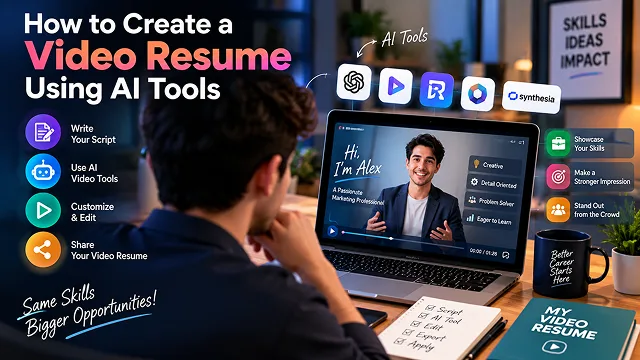
In competitive hiring markets, standard written resumes can be seen as generic. Although Application Tracking Systems (ATS) can evaluate the applicant, they cannot assess qualities such as presence, tone of voice and fit with the company culture. A video resume overcomes this problem by creating a short (1 – 2 minutes) presentation about the applicant with their story told live.
The use of generative AI throughout the process of making video resumes makes it unnecessary to use pricey equipment for lighting, teleprompters and video editing.
Above-the-Fold Matrix: Traditional Video CV vs. AI-Powered Video Resume
Candidate Presentation Benchmark · DIY Phone/Webcam Captures vs. AI-Augmented Pipelines
| Production Element | Traditional DIY Video CV (Webcam/Phone) | AI-Augmented Video Resume Pipeline |
|---|---|---|
| Production Time | 3 to 6 hours (Multiple takes, framing, manual cuts) | 15 to 30 minutes (Browser-based rendering) |
| Camera & Gear Cost | $200 – $1,500+ (Mics, ring lights, 4K webcams) | $0.00 – $20.00 (Free web tools & open models) |
| Audio Quality | Prone to room echo, background hum, and mic hiss | Clean studio clarity via AI audio enhancement |
| Eye Contact & Pacing | Shifty eyes from reading teleprompters or notes | AI Eye Contact correction & locked script pacing |
| Visual B-Roll & Props | Static talking head in a plain bedroom/office | Dynamic 3D asset showcases & animated portfolio shots |
| Accessibility & Subtitles | Tedious manual transcription and typing | Instant kinetic word-highlighted auto-captions |
1. Core AI Video Resume Resume Toolchain
An impressive video resume incorporates advanced AI technologies for creating and refining video content:
- Scripting & Pacing Engine (Claude 3.7 / ChatGPT): This is the first stage of converting your long resume into a powerful verbal 130-word message based on your strengths and potential contributions pertaining to the role you are applying for.
- Camera Presence & Audio Cleaner (Descript / Riverside / Captions.ai): Provides AI Eye Contact technology, which means you don’t need to stop looking at your notes, plus Studio Sound quality to guarantee the background noise has been removed.
- Dynamic Kinetic Captioning (CapCut Desktop / Submagic): Converts your speech into an impressive voice-over to add stylish animated captions to it. As about 70% of recruiters prefer viewing video clips from their mobile devices with no sound on during the first round of reviewing.
- Portfolio B-Roll Compositor (Remotion / Canva Video): Adds on screen metrics callouts and logos plus repositories from GitHub/Figma synchronized with what you are saying in your presentation.
2. The Script for a 60-Second Video Resume
It has been discovered that recruiters have a habit of scanning a paper resume for no more than 6-10 seconds, and also do not go beyond the first one minute and thirty seconds of the video. Writing the Script This script should be written in the following four steps:
[0:00 – 0:10] HOOK: Nomenclature, current position, one thing that makes the candidate stand out.
      │
      ▼
[0:10-0:30] VALUE PROPOSITION: two important successes in the career (metrics instead of job responsibilities).
      │
      ▼
[0:30-0:45] STRATEGIC ALIGNMENT: explanation of why this particular industry or area of activity is important.
      │
      ▼
[0:45-0:60] CALL TO ACTION (CTA): Prompting the viewer to check the portfolio and contact the candidate.
3. Step-by-Step Production Sequence
1. Synthesize the 60-Second Script
- Feed your resume bullet points and the target job description into an LLM. Prompt: "Condense these experiences into a natural 130-word conversational pitch emphasizing numerical results. Avoid corporate clichés."
2. Record Your Base Take (No Studio Needed)
- At eye level in front of a soft lighting source such as that of a window or ring light, place your smartphone or webcam. Put on professional clothing and a tidy backdrop. Read in a natural manner from a digital display close to your camera; a perfect performance is not essential during the first go at this.
3. Apply AI Gaze & Audio Correction
- Import the footage into Descript or Captions.ai. Toggle on AI Eye Contact to align your pupils directly with the camera lens. Enable Studio Sound to strip echo, background keyboard clicks, or air conditioner noise.
4. Remove Dead Air and Burn In Dynamic Captions
- Execute the "Remove Filler Words" and "Shorten Word Gaps" command to delete any hesitation gaps longer than 0.4 seconds. Craft lively captions with respect to high-contrast writing styles.
5. Export & Deploy via the Dual-CV Strategy
- 1080p MP4 Export (16:9 Landscape – Desktop/Email, 9:16 Portrait – Mobile/LinkedIn) Upload a video to an unlisted link (Loom, YouTube Unlisted, or a page within the portfolio site).
Technical Comparison: AI Video Resume Polish Tools
Candidate Video Post-Production · Eye Tracking, Audio Engineering, Subtitling & Programmatic B-Roll
| Engineering Vector | Descript (Studio Sound & Eye Contact) | Captions.ai | CapCut Desktop | Remotion (Code-Based B-Roll) |
|---|---|---|---|---|
| Primary Specialty | Transcript-based timeline trimming & acoustic cleanup. | Mobile-first AI eye redirect & auto-zoom cuts. | Fast manual kinetic subtitles & LUT color grading. | Programmatic motion graphics overlays synced to timecodes. |
| Gaze Correction Quality | High (Subtle corneal tracking, no unnatural stare). | Aggressive (Locks dead-center; can look slightly robotic if uncalibrated). | None (Requires pre-recorded eye contact). | N/A (Handles graphical and text compositing only). |
| Audio Processing | Neural room echo & noise suppression (-14 LUFS). |
Basic dynamic leveling & hiss removal. | Standard EQ, noise gate, and voice clarity filters. | Relies on pre-rendered audio stems. |
| Subtitle Styling Flexibility | Moderate (Standard captions with basic highlight). | High (Automated word-by-word active bounce effects). | Ultra-High (Full keyframe control, custom fonts, stroke/glow). | Absolute control via CSS/React components. |
| Best Workflow Stage | Base Take Polish (Pacing, filler removal, audio). | Fast mobile recording & quick social exports. | Finishing & Typography (Kinetic subtitle burn-in). | Enterprise Portfolio (Dynamic metric card insertion). |
Request A Custom AI Video
Tell us what you're trying to create and we'll point you to the right tool — or help you set it up.
4. Deployment: The "Dual-CV" Strategy
One common mistake is posting a video link into an ATS system that is expecting a .docx or .pdf file. People usually forget that most automated screening technologies work better with text files.
Use the Dual-CV Strategy to protect your application:
- The ATS Gatekeeper Document: Upload a proper keyword-optimized document in .pdf or .docx format with your entire employment history, credentials, and accomplishments.
- Human Differentiator Link: Position a straightforward, clickable callout badge at the top of your resume header: ▶ Watch 60-Second Video Intro & Portfolio Showcase: [shortened-link]. Use this same link in outreach emails to hiring managers and in your LinkedIn connection requests.
5. Kinetic Captioning Rules in CapCut Desktop
Over 70% of recruiters inspect candidate profile videos on LinkedIn or mobile email clients with the sound muted on the first pass. If your video lacks clear, readable typography, your pitch fails before the audio ever un-mutes.
Follow these rules in CapCut Desktop or Premiere Pro:
- Single-Line Density: Never display more than 3 to 5 words on screen simultaneously. Multi-line paragraphs force recruiters to read text instead of observing your facial expressions and emotional presence.
- Vertical Safe-Zone Placement: Set the caption baseline at Y: -35% (just beneath your collarbone). This avoids obscuring your chin and stays well clear of bottom media scrubbers on mobile devices.
- Visual anchor colors: Use a clear sans-serif typeface, such as Inter, Montserrat, or Helvetica Bold, with the color #FFFFFF and a subtle stroke of #000000 and a 15% drop shadow.
- Dynamic metric highlighting: Use a distinctive bright color such as Emerald Green (#10B981) or Cyber Sky (#0EA5E9) to highlight quantitative career numbers during your presentation of the number.
AI Video Resume Blueprint
Master elevator pitch scripting, eye-contact correction, portfolio b-roll integration, and recruiter-focused video delivery.
An AI video resume is a concise 60-to-90-second multimedia elevator pitch that enhances traditional PDF resumes. Using AI tools for teleprompter scripting, noise cancellation, automated eye-contact correction, and visual metric callouts, candidates can demonstrate communication ability, personal branding, and technical milestones in a format that captures recruiter attention within seconds.
A practical, high-impact stack includes: ChatGPT or Claude (for drafting tailored elevator pitches targeting specific job descriptions), Descript or BIGVU (AI teleprompter recording with automated eye-contact correction), Adobe Podcast AI (one-click studio audio voice cleanup), and CapCut or Loom (for timeline sequencing, auto-captions, and screen-recorded portfolio B-roll).
Always film yourself and use AI for post-production polish. Recruiters want to evaluate authentic interpersonal presence, natural warmth, and genuine communication skills. Using a 100% synthetic avatar clone can feel impersonal and raise red flags during hiring rounds. Instead, record on a standard smartphone or webcam, and apply AI for teleprompting, lighting fixes, eye tracking, and audio enhancement.
Features like NVIDIA Broadcast or Descript Eye Contact use neural networks to subtly re-target your pupils toward the camera lens. Even if you are reading your resume notes or looking at a scrolling script on your laptop screen, the AI adjusts your gaze so you maintain steady, natural eye contact with the hiring manager throughout the recording.
Follow the Hook-Proof-Culture-CTA Formula:
• 0–10s (The Hook): Name, target role, and your core professional value proposition.
• 10–35s (Quantifiable Proof): Highlight 2 major career achievements using metrics (e.g., "scaled traffic 180%").
• 35–50s (Role Alignment): Explain specifically why your skillset fits this exact company's vision.
• 50–60s (Call to Action): Direct the viewer to your portfolio link and suggest scheduling an introductory conversation.
Avoid speaking directly to the camera for the full 60 seconds without visual breaks. As you mention specific career achievements, cut to 3-second B-roll overlays of your work: software UI walk-throughs (recorded with Screen Studio), GitHub repositories, live websites, Figma prototypes, or data dashboards. This visually validates your verbal claims.
Recruiters often review submissions in open office layouts or on mobile devices without headphones. Auto-generated captions ensure your qualifications are understood with the audio muted. Additionally, burning in bold metric callouts (e.g., "$1.2M Revenue Generated" or "10x Deployment Speed") reinforces your key value propositions visually.
With transcript-based editors like Descript, you can detect and delete filler words ("um", "uh", "like") with a single click. The tool automatically performs seamless video jump-cut smoothing. Additionally, running the audio track through neural speech enhancers (such as Adobe Podcast AI) eliminates air conditioning hum and room echo, making a laptop microphone sound like a studio mic.
Applicant Tracking Systems cannot parse raw video files directly. Never upload heavy MP4 files directly into standard application file portals. Instead, host your video on Loom, YouTube (Unlisted), or a personal portfolio site. Place a prominent hyperlink and custom video badge right at the top of your standard PDF resume and paste the URL into your LinkedIn outreach notes.
Follow this proven 3-Step Candidate Production Blueprint: First, paste your target job listing and resume into Claude or ChatGPT to generate a 130-word conversational script. Second, record your video using Descript or BIGVU with teleprompter guidance, applying AI eye-contact correction and voice enhancement. Third, assemble the edit in CapCut, drop in 2–3 portfolio screenshot overlays, burn in clean kinetic captions, and embed the hosted link into your digital job applications.
Ready to try Skora AI?
Transform your ideas into cinematic video in seconds.