
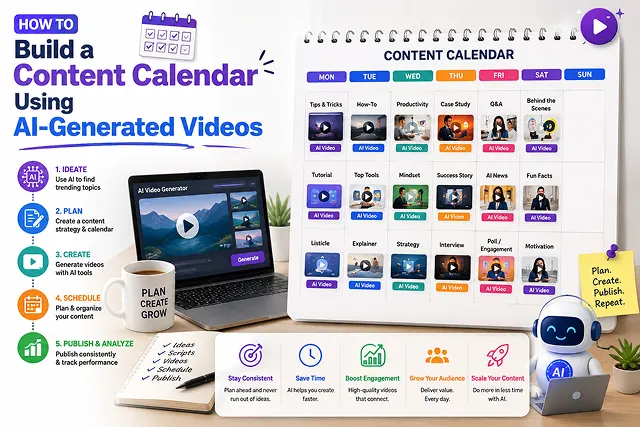
Back in the day, getting a consistent video on YouTube, on TikTok, on Instagram Reels, on LinkedIn… you had a whole production staff. Now, I can be the sole operator or a marketing team of one, planning and creating an entire month’s worth of video assets in one afternoon because we can generate them with a generative AI video tool using an AI Content Calendar, said Bales said on Monday.
Building an automated AI video content engine requires an end-to-end strategy, including step-by-step production pipelines and web performance setups.
Above-the-Fold Feature Matrix: Traditional vs. AI-Driven Video Content Calendar
Content Calendar Matrix · Traditional Workflows vs. AI-Generated Pipeline Systems
| Calendar Parameter | Traditional Video Calendar Pipeline | AI-Generated Video Calendar System |
|---|---|---|
| Production Speed | 1 to 2 videos per week (Manual editing/filming) | 30+ videos per month (Batch rendering) |
| Resource Overhead | High (Cameras, lighting, crew, editors, actors) | Low (Web browser & cloud platforms) |
| Multi-Platform Scaling | Time-consuming manual re-framing (16 : 9 to 9 : 16) | Instant automated multi-format export |
| Localization & Dubbing | $100s per language (Hiring foreign voice actors) | One-click multi-lingual AI voice cloning |
| Flexibility / Trend Agility | Days to reshoot trending topics | Minutes to re-prompt and render new scenes |
1. Stages of the process: Developing the 30-day content calendar
Utilize this production process to produce, present, and plan for 30 days worth of video content produced using AI:
1. Develop 30 material themes and hooks
- The core directive you'll want to ask your AI Strategy Assistant is: "30 video concepts across 4 pillars (Education, Trends, Product, Storytelling) for [Niche] that include a 3-second curiosity-gap hook for each concept. All video concepts will be housed in our central [Type] Database (e. G. Notion, Google Sheet)".
2. Batch-Write & Calibrate Video Scripts
- Convert selected hooks into a micro script (60 seconds worth / ~120-150 words). Write naturally, with a strong voice and minimal filler. Incorporate visual director prompts directly into the script through bracketed prompt blocks, like this: [Visual: Close-up 35mm lens of glowing server room].
3. Batch-Synthesize Voiceovers and Audio Stems
- Upload script documents to an AI speech synthesis service (e. G., ElevenLabs). Synthesize audio by keeping the voice consistent, using the same branding. Tweak voice stability (40%-50%) so that the voice has varied pitches, and export these uncompressed WAV files:
4. Batch-render AI video B-roll and images
- Upload the script cues into the generator of video (i.e., Kling 3.0, Google Veo 3.1, and free of charge Wan 2.2) and use a Global Style Anchor (like "35mm wide-angle lens, and strong chiaroscuro illumination") each time you do this action.
5. Timeline Assembly, Captions, & Scheduling
- Utilize an editor application (such as CapCut Desktop or Descript) to import AI B-roll and voiceovers. Generate kinetic captions automatically, set music background ducking at a volume of -18dB, and render final exports. Use an AI scheduling software (such as Buffer, Metricool, or FeedHive) to upload the created assets.
2. Maintaining Visual & Brand Consistency
The main challenge in batch-producing AI videos is visual drift—where characters, lighting, or brand colors change from video to video. Prevent this using a 3-tier anchor system:
- [Global Style Anchor] ➔ [Subject Continuity Vector (IP-Adapter)] ➔ [Color Palette Map] = Consistent Series
- Global Style Anchor: Pre-pend every video generation prompt with the same visual environment parameters (e.g., "Clean corporate 3D isometric render, pastel blue key lighting, soft shadows").
- Subject Locking (IP-Adapter): Use an image-to-video (I2V) reference setup to keep character faces and product shapes locked across multiple video calendar posts.
- Audio Voice Model Lock: Save a custom voice clone setting inside your voice generation platform so every video in the calendar uses the exact same vocal identity.
The AI Video Content Calendar Framework
Content Planning Matrix · Pillars, Formats, Tool Stacks & Publishing Frequencies
| Content Pillar | Video Format | Primary AI Tool Stack | Publishing Frequency |
|---|---|---|---|
| Education & How-Tos | 60s Kinetic Explainer (9:16) | ChatGPT-4o + ElevenLabs + Wan 2.2 / Kling | 3x per Week |
| Industry News & Trends | Talking Avatar Presenter | HeyGen / Synthesia + CapCut | 2x per Week |
| Micro-Documentaries | Cinematic B-Roll Shorts | Sora 2 / Veo 3.1 + ElevenLabs | 1x per Week |
| Product / Feature Demos | Motion Graphics & Screencast | Descript + InVideo AI | 1x per Week |
Request A Custom AI Video
Tell us what you're trying to create and we'll point you to the right tool — or help you set it up.
3. Under the Hood: The Relational AI Content Database Architecture
A production-grade video content schedule works as a networked database (created in tools like Notion, Airtable, or a bespoke PostgreSQL schema). Rather than just recording written notes, it connects each idea to its specific execution details:
[Content Angle & Hook] ➔ [Time-Coded Script] ➔ [Global Style Anchor Vector] │ ▼ [Rendered Asset URL] [Audio Stem (WAV)] [AI Prompt String & Model Parameters]
- Key Fields in the Database Schema: Production Status: Ideas -> Script -> Audio Synthesis -> Visual Production -> Quality Check Approval -> Scheduled.
- Model Parameters: The alpha (e.g., Wan 2.2, Veo 3.1, Kling 3.0), seed, kilogram weight of the motion bucket (0.3-0.5), aspect ratio (9:16 or 16:9).
- Specifics of Multi-Channel Distribution: the particular titles of the platforms, different kinetic styles of the captions, and metadata tags related to YouTube Shorts, Instagram Reels, TikTok, and LinkedIn.
4. High-Volume Batch Production Pipeline
If you want to create an entire month of video content (30 different clips) in one working session, just go through the following instructions step-by-step:
1. Batch Scripting & Visual Cue Mapping
- Create 30 short videos scripts (of 120 - 150 words each) following the prompts from your database and for every 3-second segment insert in the script columns the description of corresponding image (e.g. [00:03 - Wide-angle tracking shot of Tokyo street]).
2. Batch Synthesize & Export Audio Stems
- Pass all 30 finalized scripts into your speech synthesis engine via API or batch processor. Use a single locked voice model profile. Apply an automated 0.5-second silence stripper to keep pacing tight, and save outputs as time-coded .wav files.
3. Execute Visual Generation Passes
- Feed visual cue prompts into your video generation engine. Pre-pend your Global Style Anchor (e.g., "35mm film stock, low-key lighting, 24 FPS") to every prompt string. Generate 3 to 4 micro-clips per script pass.
4. Automated NLE Assembly & Sidechain Ducking
- Import matching audio stems and generated clips into your NLE suite. Apply kinetic auto-captions centered on screen. Set background music sidechain ducking to automatically drop by -18dB during speech.
5. Batch Export & Webhook Distribution Ingestion
- Export All 30 Completed Video FilesUpload these to your content calendar data base, hit the API (Make. Com or Python script) to automatically generate YouTube, TikTok, Reel, LinkedIn posts with scheduling dates.
AI Video Content Calendar Matrix
Master content batching, theme mapping, automated generation pipelines, and cross-platform scheduling.
The complete end-to-end blueprint follows five core milestones: 1. Theme Mapping & Frequency Planning (establishing weekly content pillars), 2. Bulk Script Generation (using LLMs to draft 30 days of scripts in advance), 3. Batch Media Production (synthesizing AI voiceovers, B-roll, and talking avatars simultaneously), 4. Auto-Captioning & Assembly (stitching assets and adding kinetic subtitles), and 5. Automated Scheduling (queuing posts across social feeds using scheduling tools).
Prompt a Large Language Model (like ChatGPT, Claude, or Gemini) with your audience demographic, target niche, and core content pillars. Request a 30-Day Content Grid Table containing specific columns: [Publish Date] + [Content Pillar] + [Hook Line] + [Visual Concept] + [Call to Action]. This generates a structured roadmap before triggering video creation passes.
A streamlined stack includes: Notion or Airtable (calendar organization and script storage), ChatGPT or Claude (script writing), ElevenLabs or HeyGen (voiceovers and lip-synced talking avatars), Hedra or Kling AI (multimodal video clip generation), and Metricool, Buffer, or LateClips (automated cross-platform social publishing).
Batching eliminates task-switching context loss. Instead of writing, rendering, and editing one video every day, creators group similar production stages into dedicated weekly blocks. Spend Monday generating all 15 scripts, Tuesday rendering all voiceover audio, Wednesday batch-generating AI B-roll scenes, and Thursday stitching and scheduling finished master clips.
Establish rigid style anchors before generating assets. Use an Image-to-Video baseline workflow for your primary character or brand avatar to lock down facial geometry across renders. Lock specific text-to-speech voice models and clone profiles in ElevenLabs, and create standard brand style presets (font, color palette, logo position) inside your timeline editor.
Design master video assets in 9:16 vertical resolution (1080x1920) as your default, as vertical formats fit YouTube Shorts, TikTok, and Instagram Reels natively. When scheduling long-form YouTube or website landing page videos, use AI smart auto-framing tools (in CapCut or Premiere Pro) to re-center subject focus for widescreen 16:9 formats without re-rendering the whole scene.
For short-form video platforms (TikTok, YouTube Shorts, Reels), aim for a schedule of 1 to 2 videos per day (5 to 10 per week). For long-form YouTube channels or corporate blogs, publish 2 to 3 high-quality videos per week. Automated AI workflows make high publishing velocity realistic without compromising visual quality.
Feed existing blog URLs or podcast audio transcripts into an LLM and prompt: "Extract 10 standalone key insights from this text and convert each into a 30-second short video script with hook, body, and CTA." Then pass those mini-scripts into an AI video engine like InVideo AI or Fliki to output a full batch of calendar clips automatically.
Calculate your credit consumption ahead of time. Generating 30 five-second video clips typically requires between 300 and 750 credits depending on the model. To optimize costs, run low-resolution draft passes first to verify camera motion and timing before committing paid credits to final 1080p/4K master renders, or use unlimited/relaxed rendering tiers.
Follow this 3-Step Weekly Operations Pipeline: First, map out 7 video topics and generate all scripts using your LLM master prompt. Second, batch-generate all voiceovers, talking avatar hosts, and B-roll visuals in a single afternoon session. Third, assemble clips in your video editor, add kinetic auto-captions, and schedule all 7 master posts across your social media management platform for hands-free publishing.
Ready to try Skora AI?
Transform your ideas into cinematic video in seconds.