
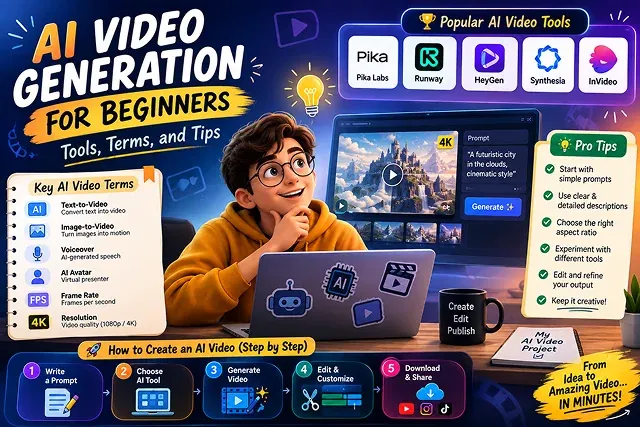
Entering the realm of AI video production can be something incredibly overwhelming, given the vast range of platforms, prompts, and jargon that are present in this industry. It is now possible to come up with quality video content without needing a professional camera or years of experience in animation.
Whether you are after a short clip for social media, or you are thinking of creating a marketing video or an education video, this ultimate guide provides a comprehensive overview of its tools, technical terms, and the necessary steps for making a quality video.
Above-the-Fold Breakdown: Beginner AI Video Tools Compared
AI Tool Stack Comparison · Primary Specialties, Key Advantages & Target Use Cases
| AI Video Tool | Primary Specialty | Key Beginner Advantage | Target Use Case |
|---|---|---|---|
| Wan 2.2 Studio | Widescreen cinematic motion & physics | Open-source & high physical realism | B-Roll, short films, & visual storytelling |
| Hedra (hedra.me) | Audio-driven character animation | Flawless viseme-matched lip-syncing | Talking avatars, faceless YouTube, presentation clips |
| Google Veo 3 | Cinematic lighting & multi-modal audio | Native synchronized sound & Foley FX | Turnkey social ads, trailers, & commercial spots |
| Kling AI | Dynamic kinetics & action sequences | High motion stability over 5–10s clips | Action shots, sports roll, & social media Shorts |
| 3D Forge Engine | Text-to-3D asset blacksmithing | Clean OBJ/GLB quad mesh outputs | Game props, product design, & interactive 3D scenes |
1. Frequently Used AI Video Terminologies (Key Terms)
Learning the following industry-specific terms will allow you to better exchange information with generative AI systems as well understand their tutorials.
- Text-to-Video (T2V): Making moving videos completely based on written text inputs.
- Image-to-Video (I2V): Receiving still baseline image and issuing text prompts to determine how the camera should move or the subject should be animated.
- Diffusion Transformer (DiT): The architectural basis of the AI which employs language processing and eliminates visual noise of the pixels to create clear video frames.
- Global Style Anchor: A repetitive collection of descriptive words (like “35mm anamorphic glass, warm 3200K rim light”) that are included in all the scene prompts for visual consistency of the cuts.
- Character Consistency and Visual Drift: Character's face, clothing, and surroundings changing in successive scenes are referred to as visual drift. Character consistency solves this problem.
- SSML (Speech Synthesis Markup Language): Coding which is used in text-to-speech technologies in order to control pauses, pitch, speed, and stress of a voice (like ).
- Sidechain Audio Ducking: A process used to edit the audio of a piece to automatically decrease the volume of the background track whenever the narration occurs, guaranteeing clear intelligibility.
2. Step-by-Step Beginners Production Pipeline
Follow this 5-step sequence to generate your very first AI powered video efficiently:
1. Write a Modular Script & Visual Cue Map
- Write down a brief and snappy script (120–140 words for a 60 second video). Break down your script into 3 second chunks of speech and under each section, type out corresponding visual scene.
2. Synthesize Clean Voiceover Audio
- Feed your finalized text into an AI audio creator (like ElevenLabs or Descript), setting the “Speech Stability to 45% to ensure expression and variations in pitch, exporting as a 24-bit WAV stem and cutting any unwanted pauses before a sentence begins.
3. Batch-Render Visual Clips using I2V or T2V
- Feed your visual cues into your chosen video engine (Kling, Runway, or InVideo AI). Focus each generation pass on a single micro-action (e.g., "camera pans right") rather than asking for complex, multi-step scene movements.
4. Timeline Assembly & Sidechain Ducking
- Upload your voiceover stem and video clips to an editor (CapCut Desktop, or DaVinci Resolve). Clip back the first and last half-second of every AI video clip (to stop it glitching in the beginning when it first generates), and duck background music to a -18dB depth when the speaker speaks.
5. Apply Kinetic Captions & Export Master File
- Add auto-generated, high-contrast captions centered within safe display bounds (away from social media UI overlay buttons). Now to export the completed master render out in 1080p Full HD (1920 x 1080) at 30 Frames per Second.
Top Beginner-Friendly AI Video Tools
Choosing the right tool depends on whether you need quick script-to-video assembly, realistic camera-less b-roll, or digital avatar presenters:
| Tool Category | Top Platform | Key Capabilities | Ideal Beginner Use Case |
|---|---|---|---|
| All-in-One Automation | InVideo AI / Canva | Converts simple text prompts or scripts into full, edited videos with stock clips, captions, and voiceovers. | Fast YouTube Shorts, TikToks, and basic social media ads. |
| Cinematic Generative AI | Runway (Gen-4) / Kling AI | Generates original photorealistic or animated video clips directly from text or static images. | High-end B-roll, creative visuals, and custom cinematic scenes. |
| AI Presenters & Avatars | HeyGen / Synthesia | Maps spoken text to hyper-realistic digital human avatars with automatic lip-syncing. | Corporate onboarding, SaaS walkthroughs, and educational explainer videos. |
| Text-to-Video Simulators | Google Veo / Sora | Generates complex physical world scenes, physics simulations, and native background audio. | High-budget ad clips, realistic environments & FX. |
| Transcript & Video Editors | Descript / CapCut | Edits video by editing written transcripts, auto-generating captions, and cleaning up background noise. | Audio cleanup, auto-captioning, and multi-track video assembly. |
Request A Custom AI Video
Tell us what you're trying to create and we'll point you to the right tool — or help you set it up.
3. Deep Dive: Architectural Mechanics of Diffusion Transformers (DiTs)
Modern AI video platforms—such as Google Veo 3.1, Kling 3.0, Sora 2, and Wan 2.7—no longer rely on legacy U-Net neural architectures. They opt for Diffusion Transformers (DiTs), which integrate latent spatial diffusion with transformer sequence processing.
[Text / Picture Prompt] ➔ [T5 / CLIP Encoder] ➔ [Three-Dimensional Patch Representation (X, Y, Time)] ➔ [Latent Denoising Process] ➔ [Variational Autoencoder Decoder (4K MP4)]
1. Space-Time Latent Space (3D Patching)
- Spatial Attention (X, Y Axis): VAE takes the high resolution image and maps it into latent patches of a significantly reduced dimensionality. The spatial layers handle background depth, subject geometry, and lighting physics.
- Temporal Attention (T Axis): Unlike image generators, video DiTs process frames sequentially along a temporal dimension. The model calculates pixel movement vectors across time steps to generate fluid motion.
2. Why "Prompt Overloading" Fails
Writing long multi-step action instructions in one prompt string (like "a man opening a door, sitting down, and then drinking coffee") makes the temporal attention layer plan many conflicting motion paths simultaneously, and this eventually leads to temporal breakdown, such as transforming limbs, floating objects, and changing background textures.
- Rule of Thumb: Limit each prompt to a single micro-action (e.g., "Subject turns head 45 degrees left"). Connect multiple micro-actions using hard cuts or transitions in your editor timeline.
4. Resolving Advanced Production Glitches
To create high-grade AI video, it is important to detect and resolve rendering issues before broadcasting the final product:
The 3-Step Anchor Protocol:
- Removing the "Metallic Sibilance" Effect from AI voices: The high-compression neural voice synthesis technique generates synthetic resonance in the 8-12kHz frequency range. A dynamic notch filter should be applied at 9.6kHz (with a narrow Q factor of 8.0) with the audio being passed through a de-esser at 6.2kHz frequency.
- Adjusting dynamic audio ducking: If static volume levels are applied to background music, it can easily obscure conversations on the speakers of a mobile phone. Configure a dynamic sidechain compressor on your music track, set to automatically lower the music volume by -16dB to -20dB whenever a voiceover signal is detected.
- Overcoming Kinetic Caption Clipping: Avoid placing auto-generated subtitles near the very top or bottom of vertical videos (9:16). Social media apps display native UI buttons, like buttons, and channel names over those areas. Caption only use the Middle Third Safe Zone (35% through 65% of total screen height).
Beginner's AI Video Roadmap
Master fundamental terminology, software tools, camera controls, and high-yield generation tips.
AI video generation uses deep learning neural networks—specifically Diffusion Transformers (DiT)—to synthesize moving video frames directly from text descriptions or still photos. Instead of manually shooting footage with a camera, you enter a written prompt describing a scene, and the AI calculates realistic lighting, physical motion, and spatial geometry to compile a short video clip.
For generating standalone cinematic clips, Kling AI and Luma Dream Machine offer smooth web interfaces with daily free trial credits. If you need all-in-one script-to-channel automated production (including voiceovers, B-roll, and auto-captions), InVideo AI and CapCut AI are the most beginner-friendly platforms available.
Text-to-Video (T2V) generates video scenes strictly from written prompts. Image-to-Video (I2V) uses an existing photograph as a baseline image and animates motion over it. Lip-Sync Synthesis maps an audio voice track onto a character's facial geometry so their mouth movements match spoken dialogue.
Follow the 5-Core Element Formula: [Subject] + [Action/Motion] + [Camera Movement & Lens] + [Lighting & Color] + [Environment/Style]. For example: "A young developer typing on a laptop, slow tracking camera dolly-in, warm golden hour window lighting, cinematic 35mm shallow depth of field, modern tech office."
Text-to-Video gives the AI total freedom to guess visual details, often resulting in inconsistent faces or unexpected backgrounds. Image-to-Video locks down your visual subject first. By starting with a clean reference photo (generated via Midjourney or FLUX), the video AI focuses 100% of its processing power on rendering natural motion paths.
The Motion Intensity slider governs how much physical movement happens across video frames. Setting motion too high causes visual artifacts like tearing edges, morphing limbs, or distorted backgrounds. For smooth, artifact-free renders, keep your motion slider set to a moderate level (3 to 5 out of 10).
Set your canvas aspect ratio according to your primary publishing channel: select 9:16 vertical (1080x1920) for mobile-first feeds like TikTok, YouTube Shorts, and Instagram Reels; choose 16:9 widescreen (1920x1080) for traditional YouTube videos, blog headers, or corporate presentations.
Use neural text-to-speech tools (like ElevenLabs) to turn your script lines into natural human narration. Import your voice audio file into your video editor (like CapCut), place your AI video clips on the visual track above it, and apply Audio Ducking to lower background music volume automatically while speech plays.
Over 70% of viewers scroll social feeds with their audio turned off. Kinetic auto-captions display spoken words in high-contrast text on screen, ensuring your message is understood without sound while boosting audience retention and watch time metrics.
Follow this simple 3-Step Beginner Execution Blueprint: First, write a short 60-second script using an LLM and generate a voiceover track in ElevenLabs. Second, generate base visual images and pass them into Kling AI or Luma Dream Machine to create 3-5 second motion clips. Third, stitch your audio and visual assets together inside CapCut, enable auto-captions, add background music, and export your finished 1080p video.
Ready to try Skora AI?
Transform your ideas into cinematic video in seconds.